
How to Write Meeting Minutes (Step-by-Step Guide + Free Template)

Updated on October 13, 2026 to reflect note1's current plans and features.
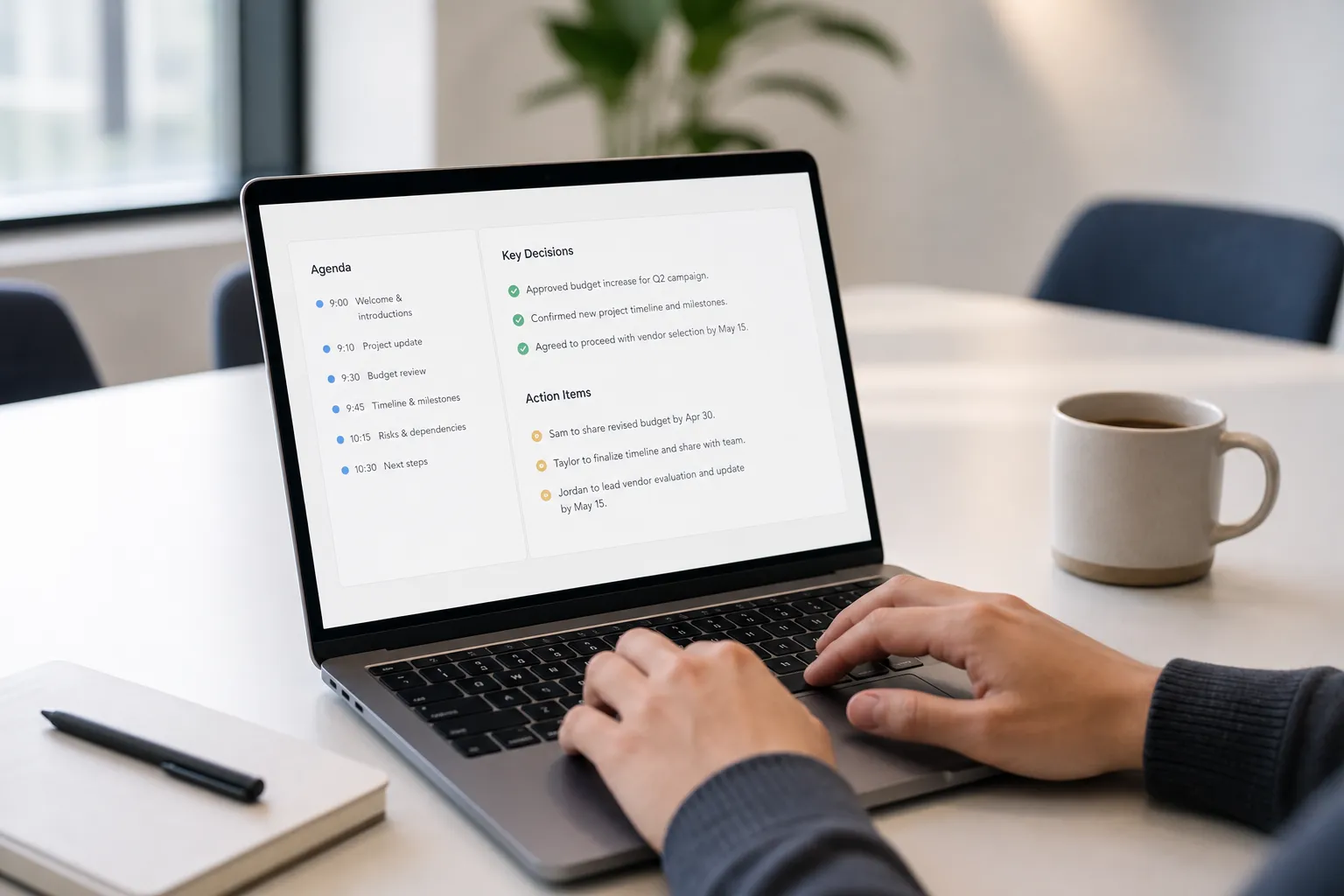
If people leave your meetings unclear about what changed or who owns what, the issue is not the conversation. It is the record. High-signal minutes turn debate into decisions, drive follow-through, and cut rework. This guide shows how to capture minutes that teams trust, with a reusable template, concrete examples, and a workflow that pairs human judgment with AI notes and Google Meet transcription.
What good minutes include (and what to skip)
Minutes are the durable memory of the meeting. Someone who did not attend should be able to read them and know what changed, why, and what happens next.
Include:
- Decision log: What was approved, deferred, or rejected, plus the brief rationale.
- Action registry: One owner per task, due date, and one line of context.
- Numbers and constraints: Targets, dates, budgets, scope boundaries.
- Risks and open questions: Known issues and what blocks a decision.
- References: Links to docs and time-stamped pointers into the recording.
Skip:
- A blow-by-blow account of who said what.
- Vague verbs like discussed or aligned.
- Ambiguous ownership such as team to follow up.
- Unverified numbers or speculation presented as fact.
Minutes are not a transcript. If you use Google Meet transcription or other meeting transcription software, you can always return to the source. Keep the minutes scannable and link critical quotes to timestamps.
Prepare before you join
1) Align on agenda and roles
- Agenda: Write a meeting agenda with 2–5 goals, time boxes, and desired outcomes.
- Roles: Confirm chair, minute-taker, and a timekeeper. If the note-taker is a participant, agree on short pauses to capture decisions.
- Consent: If recording, state it clearly at the start: “This meeting will be recorded and transcribed for internal notes.”
2) Pick tools that capture everything
If you meet on Google Meet, use an AI meeting assistant that records, transcribes, summarizes, and proposes action items. With calendar sync, it can connect to Google Calendar, auto-join scheduled Meet calls, and generate recordings, transcripts, and AI meeting summaries without manual effort. Recording and playback let you stay present while the transcript remains searchable later. Speaker labels editing ensures the right names appear on quotes and tasks.
3) Start from a reusable template
A simple structure prevents gaps and keeps minutes consistent across projects. Copy and adapt this template.
- Meeting: [Project or topic] | Date: [YYYY-MM-DD] | Time: [Start–End] | Location: [Room or Google Meet]
- Attendees: [Names]. Apologies: [Names]. Chair: [Name]. Minute-taker: [Name]
- Agenda:
- [Item 1 goal]
- [Item 2 goal]
- [Item 3 goal]
- Discussion and decisions:
- Item 1: Summary [2–4 lines]. Decision: [Approved/Deferred/Rejected/Change]. Rationale: [Brief].
- Item 2: Summary [2–4 lines]. Decision: [State]. Rationale: [Brief].
- Action items:
- [Owner] will [task] by [date]. Context: [1 line]. Timestamp: [hh:mm:ss].
- [Owner] will [task] by [date]. Context: [1 line]. Timestamp: [hh:mm:ss].
- Risks and open questions: [Bullets]
- Next meeting: [Date/time] | Prep: [Docs or data]
Tip: Use a consistent file name such as [YYYY-MM-DD] [Team] [Meeting type]. It keeps search results ordered by date.
Write minutes during the meeting
Capture the basics first
Before discussion starts, fill in the meeting title, date, attendees, and agenda. If you are recording, confirm consent and that the transcription is running. These basics prevent confusion when you share or search later.
Summarize with structure, not shorthand
For each agenda item, use a simple pattern: Problem → Options considered → Decision → Evidence. One or two crisp sentences per element beat a wall of text. If a quote matters, add a timestamp so you can pull the exact clip from the searchable transcript.
Example:
- Problem: Mobile conversion down 8 percent week over week on checkout step 2.
- Options: A) Roll back last UI change, B) Add progress bar, C) Ship fix for iOS 16 bug first.
- Decision: C approved. Rationale: Error rate spikes map to iOS 16 sessions.
Write decisions like a changelog
Use explicit status verbs and measurable details.
- Decided to ship the iOS 16 checkout fix to 10 percent of users on July 15 to validate error reduction. Owner: Priya.
- Deferred the progress bar until post–A/B results on July 22. Owner: Marco.
- Rejected rolling back the UI change due to no impact on error logs. Owner: N/A.
Log action items with accountability
Each task needs one owner and a date. Add one line of context and a timestamp so anyone can jump to the discussion.
- Marco will prepare the iOS 16 crash report by Jul 12. Context: QA spike in step-2 failures. Timestamp: 00:18:42.
- Priya will create an A/B experiment plan for the July 15 partial rollout by Jul 10. Context: Measure error rate and conversion impact. Timestamp: 00:23:11.
Use a parking lot for off-track topics
When a discussion runs long or drifts, move it to a parking lot and record a follow-up owner and date. This keeps the current agenda on time and ensures nothing is lost.
Keep names consistent
Standardize spelling for people and teams. If the transcript mislabels speakers, flag it and fix with speaker labels editing during cleanup. Consistent names make search and cross-meeting traceability reliable.
Finalize, share, and keep minutes useful
Clean up while context is fresh
- Scan the transcript to verify facts and pull any exact quotes. Use AI highlights to spot decisions, questions, and action items on the playback timeline.
- Tighten language. Replace discussed with approved, deferred, or rejected. Add missing owners or dates.
- Insert links to design docs, tickets, and dashboards. Add timestamps where evidence is in the recording.
- Correct speaker labels so attribution is accurate.
Generate summaries, then review
AI meeting summaries are a fast way to brief stakeholders who missed the call. Keep a human in the loop. Confirm the summary matches the decision log and action registry before sharing.
Share quickly to the right places
- Timing: Send minutes within 24 hours. Delays reduce accuracy and momentum.
- Distribution: Post to the project workspace that mirrors your calendar structure, or post the meeting recap to Slack. Notify attendees and tag each action owner.
- Versioning: If minutes change after sharing, note the revision and date at the top.
Make minutes searchable at scale
- Naming: Use consistent titles so meetings group by project and date.
- Tags: Add issue tags like checkout, pricing, or roadmap to improve recall.
- Search-first: Instead of scrubbing a one-hour video, use meeting search to find the relevant meeting, then jump to the exact moment in its transcript. Combined with Google Meet transcription, this becomes a durable record for audits and onboarding.
Use analytics to improve meetings
Speaker analytics can reveal talk time, speaking speed, and segment counts per participant. If one voice dominates or decision-makers rarely engage, address it in the next agenda. Healthier participation leads to clearer decisions and shorter calls.
Key takeaways
- Minutes capture outcomes, not chatter. Log decisions with rationale, owners, and dates.
- Prep matters: clear agenda, defined roles, consent to record, and a reusable template prevent gaps.
- Use recording, Google Meet transcription, and AI meeting notes to stay present and verify details.
- Write decisions like a changelog and keep one owner per action with a due date and context.
- Share within 24 hours, store by workspace, and rely on search and analytics to scale meeting memory.