
7 Proven Note-Taking Methods That Capture More in Meetings

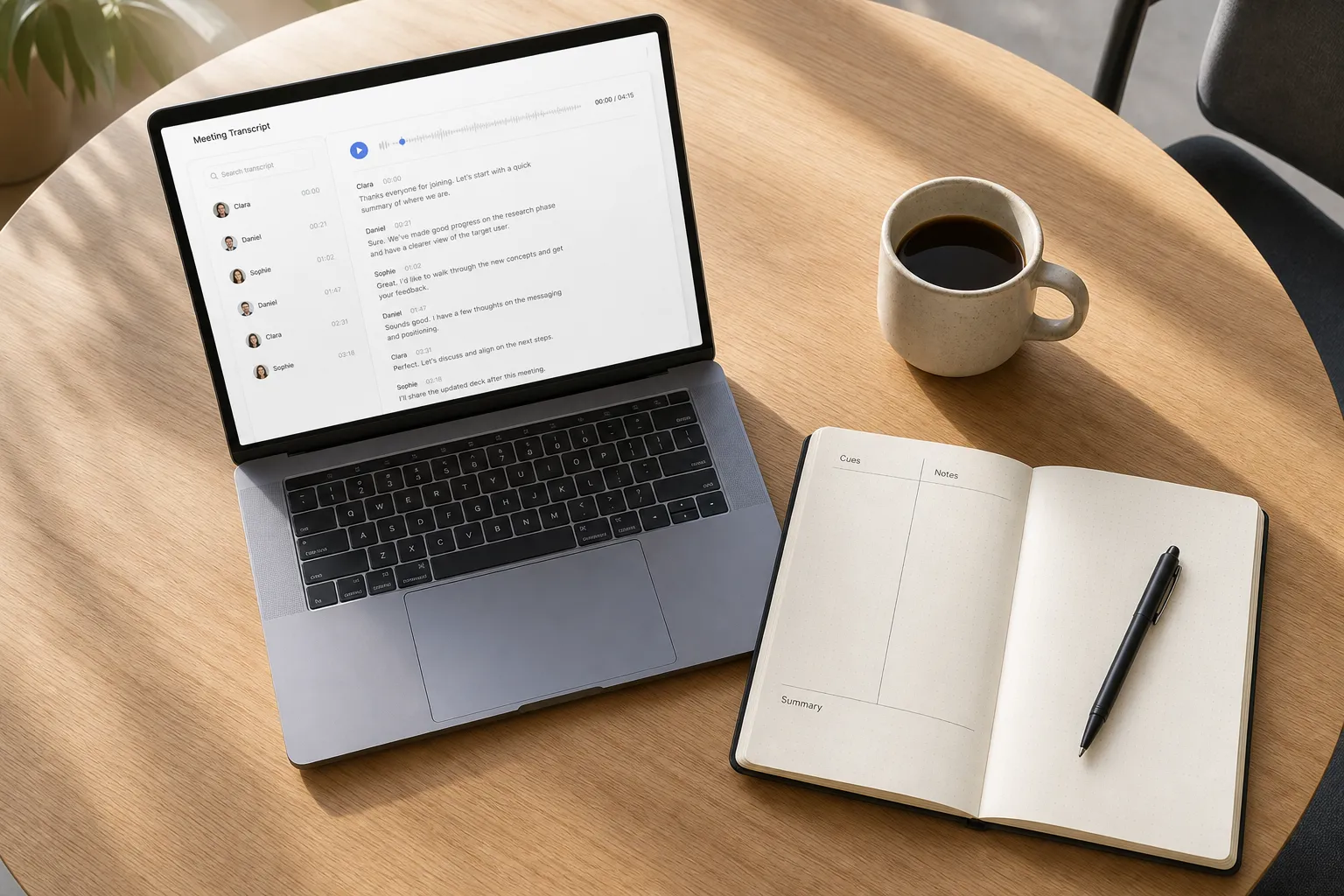
Five minutes after a call, you should be able to answer three things: what was decided, who owns what, and by when. If your notes do not deliver that, you need a method. The right structure lets you listen with focus, capture less but better, and find the exact moment a commitment was made.
Below are seven field-tested methods and a simple way to pair them with recording, transcription, and AI summaries in Google Meet. Pick one before you join and your notes will start working for you instead of the other way around.
Why a method beats winging it
Meetings are dense. A 45 minute call can surface 5 to 8 real decisions, 3 to 10 actions, and dozens of facts. Without a plan you either try to write everything or you miss the signal. A structured method forces you to capture what moves work forward and ignore what does not.
A good method consistently captures:
- Decisions and the short rationale, so context survives past the call
- Actions with owner and deadline, so accountability is clear
- Risks, assumptions, and open questions, so follow-up is obvious
- References to timestamps in the recording, so you can verify quotes fast
Structure also lowers cognitive load. You are not inventing a layout while trying to listen. You are filling known buckets. A note-taking method gives your attention the same rails in a meeting.
The 7 note-taking methods that work in real meetings
1) Cornell Method for balanced capture and review
Layout: cues on the left, notes on the right, a 3 to 5 line summary at the bottom.
- Setup: Create a two-column page before the call. Right column is 70% width.
- During: Write facts and quotes on the right. On the left, add cues like “Decision,” “Risk,” “Owner,” and questions to raise.
- After: Draft a short bottom summary. Cross-check it against the AI summary.
- Example: Left cue “Decision,” right note “Adopt Option B for rollout. Reduces risk to legacy users.”
Best when you need fast recall and a tidy handoff. Works well for product reviews and stakeholder updates.
2) Outline Method for agendas and status updates
Layout: agenda item as a top bullet, with nested bullets for facts, decisions, and actions.
- Setup: Paste the agenda as top-level bullets. Under each, add three sub-bullets: Facts, Decisions, Actions.
- During: Keep indentation shallow. Mark actions with [A], decisions with [D].
- Example: “Payments: [D] Switch PSP for EU. [A] Maria to run risk assessment by Tue.”
Best for standups, project syncs, and customer check-ins where the agenda already defines the structure.
3) Decision–Action–Owner–Deadline (DAOD) to lock accountability
Layout: a compact ledger for every outcome. You can keep it inline or in a dedicated section.
- Setup: Add a footer section titled “Actions and Decisions.”
- During: For each item, write DAOD in one line. Keep language precise and testable.
- Example: “Decision: Ship beta to 50 users. Action: Create allowlist. Owner: Priya. Deadline: May 8.”
Best for cross-functional sessions, approvals, and executive reviews where ownership is the whole point.
4) Mind Map for discovery and complex topics
Layout: a central topic with branches for themes, risks, and ideas. Use light connectors for dependencies.
- Setup: Write the central problem in the middle of the page. Add primary branches like Users, Constraints, Ideas, Risks.
- During: Capture short phrases per node. Circle big risks. Star promising paths.
- Example: Under “Users,” branch “Admin,” “Buyer,” “End user,” each with pains and current workarounds.
Best for brainstorming, product discovery, or architecture reviews when linear notes hide gaps.
5) Quadrants to separate signal from noise
Layout: four boxes labeled Decisions, Actions, Risks, Notes.
- Setup: Draw or insert a simple 2x2 grid before the call.
- During: Force every item into a box. Keep “Notes” for facts that need no follow-up.
- Example: Decisions: “Pilot with Team A only.” Actions: “Log retention policy update. Owner: Chen. Due: Fri.”
Best when meetings mix status, blockers, and planning. The visual split prevents burying actions in paragraphs.
6) Timeline Method for interviews and incident reviews
Layout: timestamped entries that mirror the recording.
- Setup: Add time markers in 5 minute increments before you join.
- During: Prefix entries with the timestamp. Quote sparingly and tag speakers.
- Example: “[00:12] Sara: ‘Churn spike started after price change.’ Note: check cohort by region.”
Best for customer interviews, sales calls, and post-incident reviews where you will revisit exact moments.
7) Question–Notes–Tasks to drive outcomes
Layout: three sections in this order. Start with the questions that must be answered.
- Setup: Write 3 to 5 must-answer questions at the top.
- During: Add notes only if they help answer a question. Capture unresolved items in Tasks with owner and date.
- Example: Question: “What blocks launch on June 1?” Notes: “Legal review pending.” Task: “Legal to sign off. Owner: Dan. Due: May 22.”
Best when time is tight and outcomes matter more than extensive documentation.
Put these methods to work in Google Meet with AI
Pair structure with automation so nothing depends on memory. Here is a simple workflow.
- Before the call:
- Pick your method and paste a quick skeleton into your doc. For DAOD, add the footer. For Timeline, add time markers.
- In Google Calendar, add a one-line purpose and 3 agenda bullets. Share the note doc in the invite.
- Connect your AI meeting assistant to Google Meet so recording, transcription, and summaries start automatically.
- During the call:
- Let the assistant record and transcribe. Stay present. Capture only what your method requires.
- Edit speaker labels if needed so quotes map to the right person.
- Use timestamp anchors in your notes, for example “[00:27] pricing objection,” to tie back to the exact clip.
- After the call:
- Scan the AI summary. Compare it to your Cornell bottom summary or Outline decisions. Fill gaps and fix nuance.
- Review auto-detected highlights and topics. Promote true actions into your DAOD list with owners and dates.
- Share the notes link, or share the meeting recap in Slack. Add actions to your task tracker or CRM. Include one-line context plus the recording timestamp.
If your team lives in Google Meet, calendar sync and auto-join ensure scheduled Meet links trigger recording, transcripts, and summaries without hunting invites. Workspaces and folder rules can place files under the right project, so your library stays clean. Searchable transcript playback lets you jump to the moment a claim or commitment was made, which is invaluable for audits, QBRs, and postmortems. Speaker analytics such as talk time and pace help you coach facilitation in future meetings.
Together, these features give you accurate Google Meet transcription and automated meeting summaries while your chosen method keeps the human layer crisp and outcome driven.
Choose the right method for the meeting you are in
- Discovery or brainstorming: Mind Map. Add Timeline if you expect to quote verbatim later.
- Status or recurring sync: Outline with a DAOD footer so actions never get lost.
- Decision reviews: Quadrants or DAOD to keep ownership visible at a glance.
- Customer calls and interviews: Timeline with a Cornell-style summary at the end.
- Cross-functional planning: Outline plus Quadrants to separate decisions from background facts.
Role tips:
- Product managers: Cornell. Use the cue column for assumptions, risks, and follow-up questions.
- Engineers: Outline. Treat each change or blocker as a top bullet for crisp change logs.
- Sales and success: Timeline. Tie promises and objections to timestamps for reliable follow-up.
- Facilitators: Quadrants. It lets you steer the room without losing critical actions.
Switch methods when the format fights the conversation. If you are writing more than listening, simplify. If you leave without owners and dates, layer DAOD on top of whatever you used.
Key takeaways
- Pick a method before you join. It frees your attention to listen and ask better questions.
- Use structure to spotlight decisions, actions, and risks. Do not bury them in prose.
- Pair your method with recording, transcription, and summaries so nothing depends on memory.
- Searchable transcripts and highlights make it easy to verify facts and extract quotes later.
- Let automation handle capture, then use your notes to drive owners and deadlines.
The right mix of method and tooling turns meetings into steady progress. With clear systems and reliable Google Meet transcription, you capture what matters, assign work, and move on.