 Zoom recorder
Record Zoom meetings without rewatching them
note1 records your Zoom calls and pairs every recording with a searchable transcript, AI summary, and action items. Timestamps link the notes back to the exact moment in playback, so reviewing a call takes minutes instead of an hour.
Q3 renewal callHighlights
11 in this meetingHow to record a Zoom meeting with note1
Use the visible note1 Notetaker to handle the recording and turn it into a meeting page your whole team can review, without chasing files after the call.
If Zoom already recorded the meeting, download the file and transcribe the saved MP4 in note1. You can upload an existing recording even if note1 was not on the call.
Add the Zoom meeting to note1
Connect your calendar so scheduled Zoom calls show up automatically, or add a meeting from the dashboard. You stay in control of which Zoom meetings get recorded.
note1 records the whole call
The note1 assistant joins the Zoom meeting as a visible participant and records the conversation - even when you are not the meeting host. Nobody has to own local recordings or remember to press record.
Playback, transcript, and notes are ready
After processing, the meeting page holds the recording next to a searchable transcript, AI summary sections, and action items - with timestamps that jump straight into playback.
If you only need audio, transcripts, and notes while attending on a supported Mac, you can capture Zoom audio locally without a bot. Local mode records meeting audio, not bot-free video.
The recording is the evidence, not the homework
A raw Zoom recording makes everyone scrub through an hour of video to find one answer. note1 keeps the recording next to the summary and transcript, so you open playback already knowing where to look.
Timestamp links everywhere
Summary bullets, action items, and transcript entries jump straight to the matching second of the recording.
Verify exact wording
Search the transcript for a phrase, then play the moment to hear tone and context.
Share the moment, not the hour
Teammates review decisions and blockers without watching the full call.
Q3 renewal call
Recorded · 24 min · Processed
Let’s flag the security questionnaire as a blocker until their IT team responds.
I’ll attach the security questionnaire status to the proposal so procurement sees it.
An hour of Zoom video becomes a map you can navigate
Highlights - the topics covered and the key questions asked - are plotted directly on the player timeline as colored dots, marking where each moment happened in the Zoom call.
Hover a dot to preview the highlight, or browse the Highlights tab next to the transcript. Instead of scrubbing blindly through the recording, you jump straight to the moments worth replaying.
Does procurement need the updated proposal before Friday’s sign-off?
Renewal pricing and seat count
Who owns the security questionnaire follow-up?
Visibility scopes versus permissions
Every Zoom recording becomes usable meeting notes
Recording the call is the easy part. The value shows up after processing, when the same meeting page holds everything the conversation produced.
That is what makes the recording searchable months later - when someone asks what was agreed with the customer, the answer is one search away.
Searchable transcript
Speaker-labeled transcript with timestamps, generated from the Zoom recording.
AI summary
Overview, decisions, blockers, and questions grouped into readable sections.
Action items
Follow-ups with owners, extracted from what was said on the call.
Meeting search
Find past Zoom conversations by phrase, topic, or decision.
The recording lives on the same page as the notes
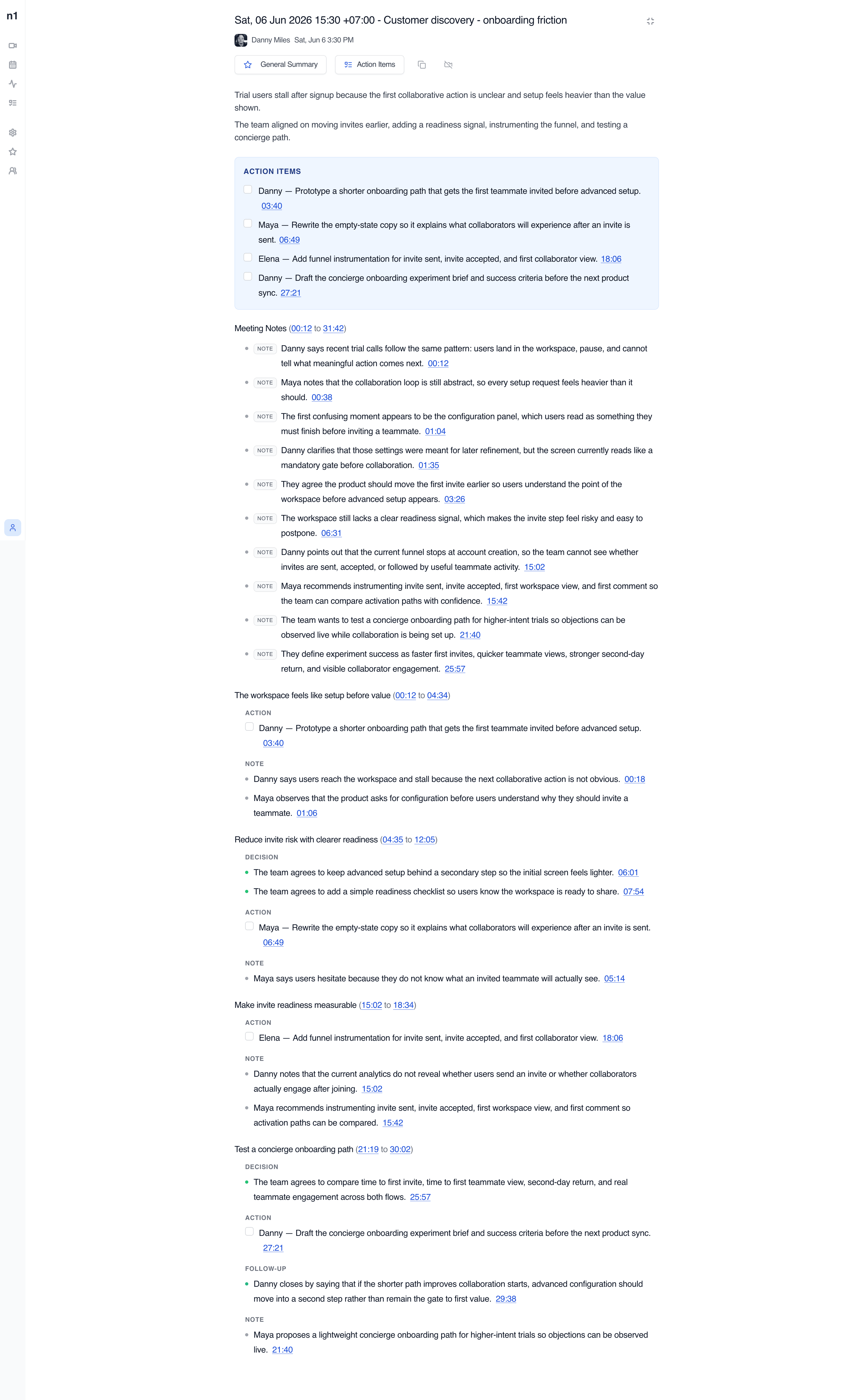
Every processed Zoom call becomes a scrollable meeting document with playback, action items, categorized notes, and links back to exact moments in the recording.
How teams use an AI note taker
Team Meeting Notes
Review team syncs, planning calls, and weekly updates with AI meeting notes, searchable transcripts, and visible follow-ups.
View use caseAI Meeting Assistant for Managers
Catch up on decisions, review action items with source context, and return to the meeting moments that need your attention.
View use caseOne-on-One Meeting Notes
Capture 1:1 conversations with AI summaries, searchable transcripts, action items, Private meeting controls, and Personal notes.
View use caseAI Interview Notes
Revisit candidate answers, interview transcripts, timestamps, and speaker context after Google Meet interviews end.
View use caseSales Call Notes
Capture customer requirements, searchable sales call transcripts, and follow-up actions after Google Meet sales calls.
View use caseProduct Meeting Notes
Turn product reviews and feedback calls into searchable transcripts, decisions, questions, and follow-up context.
View use caseRecord the Zoom call, keep the whole meeting
note1 joins scheduled Zoom meetings, records the conversation, and turns the processed call into a reviewable page with playback, action items, categorized notes, and timestamped transcript context.
Meeting notes for the video platforms your team already uses
Focused pages for each meeting platform, without making every page compete for every platform keyword.


Frequently Asked Questions
SupportCan note1 record Zoom meetings?
Yes. note1 supports Zoom meeting workflows and can record calls, then turn processed meetings into transcripts, summaries, and action items on a single meeting page.
How do I record a Zoom meeting with note1?
Connect your calendar so scheduled Zoom meetings appear in note1, or add a meeting from the dashboard. The note1 assistant joins the Zoom call as a visible participant and records the conversation for you.
Can I record a Zoom meeting if I am not the host?
Yes. The note1 assistant joins the Zoom call as a regular participant and records on your behalf, so you do not depend on the host starting Zoom’s built-in recording. The assistant stays visible in the participant list, which keeps the recording transparent - and the host always controls who is allowed into the meeting.
Does note1 record both audio and video from Zoom?
Yes. The Zoom meeting is captured for playback, and the recording sits next to the transcript and notes so timestamps can jump to the exact moment in the call.
Can note1 transcribe Zoom recordings?
Yes. Zoom meetings can be processed into searchable transcripts with speaker labels and timestamps, so you can verify exact wording without replaying the full recording.
Can I jump to a specific moment in the Zoom recording?
Yes. Summary bullets, action items, and transcript entries keep timestamp links that jump back to the matching moment in the recording.
Does note1 create action items from Zoom meetings?
Yes. note1 can extract action items from processed Zoom meeting conversations, with owners and timestamps collected in a dedicated block on the summary page.
Do I still have to rewatch the whole Zoom recording?
No. The AI summary, categorized notes, and transcript search point you to the moments that matter, so playback becomes supporting evidence instead of the first place you look.
Does note1 also record Google Meet and Microsoft Teams calls?
Yes. note1 supports Zoom, Google Meet, and Microsoft Teams, and keeps recordings, transcripts, and notes from all platforms in one searchable workspace.
More AI meeting tools from note1
Explore related meeting note workflows for the same platforms and use cases.