AI meeting notes. No bot in your call.
Capture Google Meet, Zoom, Teams, and in-person meetings directly on your Mac. Follow the live transcript during the conversation, then get a searchable record, AI summary, and action items without adding note1 to the participant list.
macOS 15+ · Apple Silicon · M1 or newer
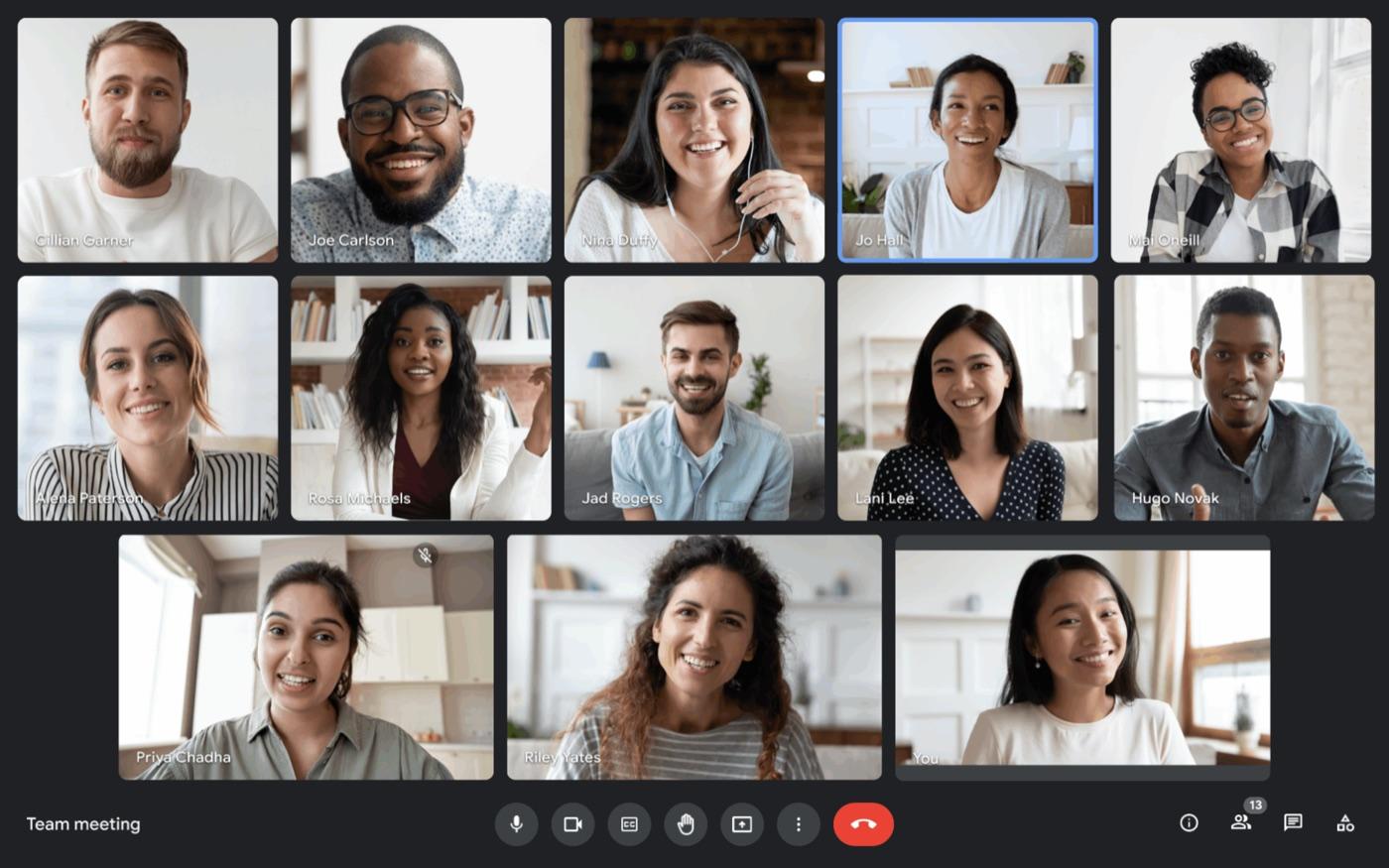

Meeting started in Google Meet
Capture notes and get live suggestions
No extra attendee
note1 records from your Mac instead of appearing in the participant list.
Works across meeting apps
Use the same recorder with Google Meet, Zoom, and Microsoft Teams.
Live help on your screen
Follow the transcript and working notes without leaving the conversation.
From call to complete meeting record in three steps
No calendar guest, waiting-room admission, or extra participant. The recording starts and stays under your control on the Mac.
Start your meeting
Open Google Meet, Zoom, or Teams in the browser or native app. note1 detects the call from the Mac menu bar.
Choose Record Locally
note1 uses microphone and Screen & System Audio Recording permissions to capture both sides without joining as an attendee.
Open the finished meeting record
The recording is securely uploaded to your workspace for the final transcript, summary, and action items with source timestamps.
Bot-free notes wherever the conversation happens
 Google Meet
 Zoom
Zoom Microsoft Teams
Online calls, minus the extra participant
Run the meeting in its native app or a browser tab. note1 captures your microphone and the other participants through macOS system audio, so the experience is consistent across supported platforms.
The same recorder for in-person meetings
Start from the menu bar and use your Mac microphone for a conversation in the room. You get the same workspace record without needing a video-meeting link at all.
The assistant stays on your screen, not in the call
Live speech recognition runs on the Mac. Follow what was said or watch working notes take shape without opening another dashboard.
If the rollout slips we should know by Wednesday at the latest.
Cool. Let’s also put a task behind that so it doesn’t get lost.
I think that works.
The other argument could be made that even if we build it…
Scroll back without stopping the speaker
The live transcript gives you a working view of the conversation while it is still happening.
Overview
- Rollout owner confirmed for launch.
- Checklist update shipping today.
- Beta feedback review moved to Thursday.
Action items
- Share the updated checklist · Danny
- Follow up Friday on launch risk · Elena
- Book the beta review for Thursday · Sam
Keep decisions visible as they emerge
Real-time notes help you stay oriented. The polished record arrives after workspace processing.
No-bot capture, complete note1 meeting record
Local capture changes how note1 enters the conversation, not what your team can review afterward.
Searchable transcript
Find the exact phrase or moment you need instead of replaying the whole meeting.
Explore featureSpeaker-aware conversation
Diarization separates voices, while spoken and confirmed names improve attribution.
Explore featureStructured summary
Review decisions, topics, and follow-up context in a concise meeting record.
Explore featureOwned action items
See next steps with owners and timestamp links back to the conversation.
Explore featureLocal while you meet. Connected when the record is finished.
Bot-free describes how note1 captures the conversation. It does not mean every later processing step stays on the device.
Read the privacy policyOn your Mac
- Microphone and system audio recording
- On-device live speech recognition
- Live transcript and working notes
In your note1 workspace
- Recording securely uploaded
- Final transcript, summary, and action items
- Searchable playback and team access
No voiceprints
note1 does not create or store voiceprints. Confirmed speaker names improve future attribution without voice biometrics.
Bot-free does not mean undisclosed
Local recording does not add a platform participant or recording alert. You are responsible for telling participants, obtaining recording consent where required, and following applicable laws and organization policies before you capture a conversation.
How teams use an AI note taker
Team Meeting Notes
Review team syncs, planning calls, and weekly updates with AI meeting notes, searchable transcripts, and visible follow-ups.
View use caseAI Meeting Assistant for Managers
Catch up on decisions, review action items with source context, and return to the meeting moments that need your attention.
View use caseOne-on-One Meeting Notes
Capture 1:1 conversations with AI summaries, searchable transcripts, action items, Private meeting controls, and Personal notes.
View use caseAI Interview Notes
Revisit candidate answers, interview transcripts, timestamps, and speaker context after Google Meet interviews end.
View use caseSales Call Notes
Capture customer requirements, searchable sales call transcripts, and follow-up actions after Google Meet sales calls.
View use caseProduct Meeting Notes
Turn product reviews and feedback calls into searchable transcripts, decisions, questions, and follow-up context.
View use caseMeeting notes for the video platforms your team already uses
Focused pages for each meeting platform, without making every page compete for every platform keyword.
Frequently Asked Questions
SupportWhat is a bot-free AI note taker?
A bot-free AI note taker records your device microphone and system audio instead of adding another attendee to the meeting. note1 for Mac uses this approach to create live transcripts and notes while your participant list stays unchanged.
Does note1 join the meeting when I record without a bot?
No. When you choose Record Locally in the Mac app, note1 captures the meeting from your computer and does not appear in the participant list. You can still choose the visible note1 notetaker as a second capture mode when that workflow fits the meeting better.
Which meeting platforms work with bot-free recording?
note1 supports bot-free recording for Google Meet, Zoom, and Microsoft Teams in native apps or browser tabs on your Mac. The app detects supported calls and offers local recording from the menu bar.
Can note1 record in-person meetings without a bot?
Yes. Start a local recording from the note1 Mac app and use your Mac microphone to capture an in-person meeting or conversation in the room. No meeting link or participant bot is needed.
Is all processing done locally on my Mac?
Recording and live speech recognition happen on your Mac. The recording is then securely uploaded to your note1 workspace, where the final transcript, summary, and action items are generated and kept with meeting playback.
Can note1 identify speakers without joining the call?
Yes. Bot-free recordings use speaker diarization to separate voices and can use names spoken during the conversation plus confirmed speaker profiles. Because note1 is not reading the meeting roster in this mode, it does not promise that every real name will appear live.
Does bot-free recording remove the need for consent?
No. A bot-free recorder does not add a platform participant or recording alert. You are still responsible for recording consent, participant disclosure, applicable laws, and your organization policies before capturing a conversation.
What Mac do I need?
The note1 desktop app requires macOS 15 or later and an Apple Silicon Mac with an M1 or newer processor. Intel Macs are not supported.
More AI meeting tools from note1
Explore the transcript, speaker, and summary tools behind bot-free capture.
Take notes without adding anyone to the call
Download note1 for Mac and choose local recording for your next online or in-person meeting.
macOS 15+ · Apple Silicon · M1 or newer