
How to get a Zoom transcript: built-in options and note1.ai

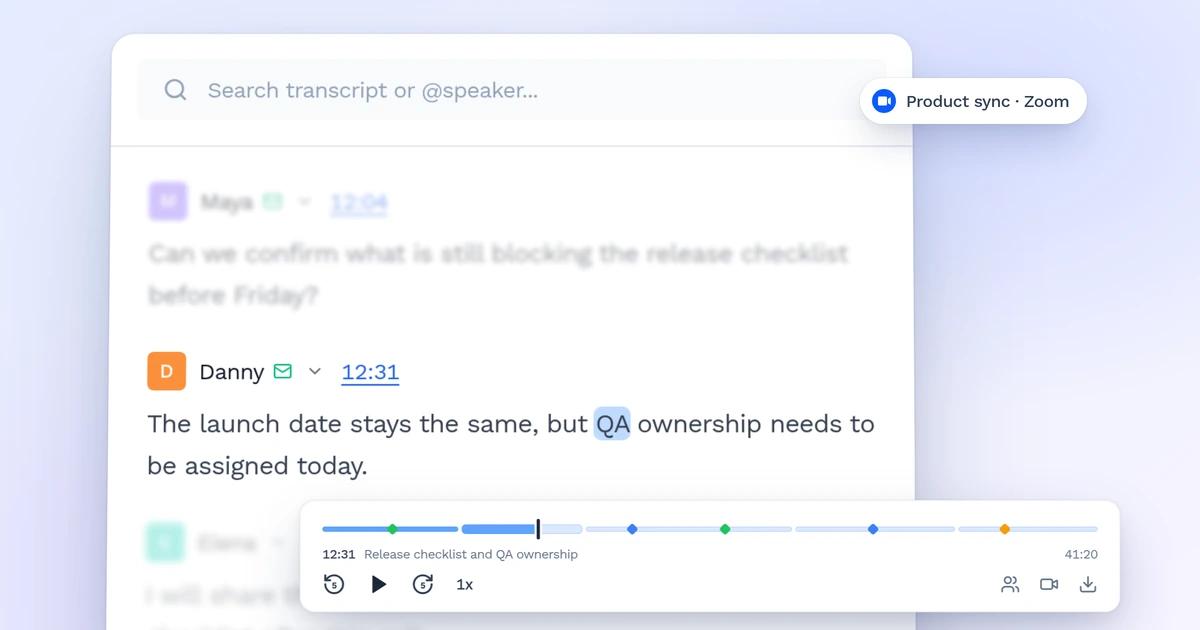
Zoom can create a meeting transcript in two ways, but only if the right setting is on before the meeting starts. These steps reflect Zoom's support documentation checked in November 2026. Your account administrator can lock or hide any of these settings.
Short answer
To get a Zoom transcript, either record the meeting to the cloud with Create audio transcript turned on, which saves a .vtt file next to the video, or turn on Zoom's Meeting transcript and save it as a text file during the call. Zoom does not list either option for free accounts, and both must be set up beforehand.
Live captions show text only during the meeting. Since May 2026, Zoom no longer lets anyone save or download captions after a meeting.
If you need a Zoom meeting transcript with speaker names, a summary, and action items, or you only have a local recording, note1.ai can produce one from a live meeting or from a file you upload.
Which Zoom transcript can you get?
| Method | When it works | What you get | Where it ends up |
|---|---|---|---|
| Cloud recording audio transcript | Pro, Business, Education, or Enterprise account, cloud recording on, Create audio transcript turned on before the meeting | Timestamped transcript shown beside playback | .vtt file under Recordings & Transcripts in the host's web portal |
| Meeting transcript | Pro, Business, or Enterprise account, Meeting transcript turned on by the host or admin | Live transcript panel during the call | .txt file in Documents/Zoom when saved, or a file in the web portal if automatic generation is on |
| Live captions | Available during meetings | On-screen text with up to 3 minutes of scroll back | Nothing is saved after the meeting |
| Computer (local) recording | Desktop app, with recording permission | .mp4 video and .m4a audio | No Zoom transcript; upload the file elsewhere to transcribe it |
Option 1: get the audio transcript of a Zoom cloud recording
This is Zoom's post-meeting transcript. Zoom's article on enabling audio transcription for cloud recordings lists a Pro, Business, Education, or Enterprise account with cloud recording enabled.
Turn on Create audio transcript
- Sign in to the Zoom web portal and open Settings.
- Open the Recording tab and confirm Cloud recording is on.
- Under the advanced cloud recording settings, select Create audio transcript and save.
If the checkbox is grayed out, an account owner or admin has locked it. The setting only affects meetings recorded after you turn it on. Zoom does not transcribe earlier recordings when you enable it later.
Record to the cloud and find the transcript
- Start the meeting as host or co-host, select Record, and choose Record to the cloud.
- After the meeting, wait for processing. Zoom sends one email when the recording is ready and the transcript can take longer.
- In the web portal, open Recordings & Transcripts > Cloud recordings and select the meeting.
- Open playback to read the transcript beside the video, or download the audio transcript file.
Zoom's guide to using audio transcription for cloud recordings explains how to edit the transcript in the player and how hosts can let viewers see it when they share the recording. Zoom's help pages describe English as the default language and do not agree on which other languages are available, so check the options shown in your own account.
Zoom labels lines with participant names where it can. Lines it cannot attribute, which is more likely when several people share one room microphone, can appear as an unknown speaker that you fix by hand.
Option 2: use Zoom's Meeting transcript during the call
Zoom added the Meeting transcript feature in May 2026. It works without recording the meeting. Zoom's article on enabling meeting transcripts lists a Pro, Business, or Enterprise account as the requirement.
Turn it on before the meeting
- In the Zoom web portal, open Settings > Meeting.
- Under In Meeting (Advanced), turn on Meeting transcript.
- Review the sub-settings and save.
The sub-settings decide whether you keep anything after the call:
- Automatically generate transcripts for creates transcripts for all meetings or only for meetings with a summary.
- A saving permission controls who sees a Save transcript button, from the host only to all participants.
- A host-access setting lets hosts view, delete, and download transcripts after the meeting in the web portal.
Save the transcript during the meeting
Zoom's page on using Meeting transcripts describes these steps:
- In the meeting controls, select More > Transcript. The transcript panel opens and fills in as people speak.
- Before you leave, select Save transcript at the bottom of the panel.
- Zoom saves a
.txtfile in the Documents/Zoom folder on Windows, macOS, or Linux.
If automatic generation is off and nobody selects Save transcript before leaving, the text is not kept. A participant who cannot start the transcript can request it, and the host can accept or decline.
What changed for Zoom captions and saved transcripts
Many older guides tell you to turn on Full transcript or Save captions and then click Save transcript in the captions panel. Zoom retired that route. Its notice on saving closed captions says that starting May 18, 2026, users can no longer save or download closed captions. Captions still appear during meetings, with up to 3 minutes of scroll back, and during recording playback.
Zoom's FAQ about the May 2026 captions and transcript update explains that captions are a live accessibility feature and transcripts are the saved meeting record. If you used saved captions as your notes, use one of the transcript options above or a separate AI note taker for Zoom instead.
Can you transcribe a local Zoom recording?
Not inside Zoom. Audio transcription applies to cloud recordings only. A computer recording gives you an .mp4 video file and an .m4a audio file in your Documents/Zoom folder, but no transcript. See how to record a Zoom meeting for the difference between computer and cloud recording and where each file is saved.
To transcribe a Zoom recording you already have, upload the .m4a or .mp4 file to a transcription tool, or follow one of the free ways to transcribe audio to text. note1.ai accepts both, as described below.
Get a Zoom transcript with note1.ai
note1.ai writes the transcript, names the speakers, and adds a summary and action items. It does not depend on the host's Zoom plan or on someone remembering to press Save transcript. There are three ways in.
Send the note1 Notetaker to a live Zoom meeting
- Connect your calendar so note1.ai sees meetings with a Zoom link, or press New meeting > Add live meeting and paste the full Zoom invite link.
- The Notetaker joins as a visible participant. If the meeting has a waiting room, the host admits it.
- After the call, open the meeting under Meetings to read the transcript, summary, and action items.
Record on your Mac without a bot
The note1.ai desktop app for macOS 15+ on Apple Silicon records your microphone and your Mac's system audio, so nothing joins the Zoom participant list. You see a live transcript while you record. When you stop, the recording is uploaded to your note1.ai workspace and the final transcript, summary, and action items are written there. Transcription runs on note1.ai's servers; the app does not transcribe on your Mac. See the bot-free AI note taker for details.
Upload a local Zoom recording
- Find the
.m4a(audio only) or.mp4file in Documents/Zoom. - In note1.ai, press New meeting > Upload recording and choose the file. The form shows the accepted formats and the size limit for your workspace.
- Add a meeting title and, optionally, the meeting language and summary type.
- Keep the window open until the upload is confirmed. Transcription starts after that.
An uploaded recording gets notes after processing. It does not get live help during the meeting. See upload recordings for the full flow.
What you get after the meeting
- A searchable transcript with timestamps you can click to replay that moment.
- Speaker identification that splits the transcript by voice and names speakers from the call, your calendar, and people you have confirmed before. You can rename a speaker for one block or for the whole meeting.
- An AI meeting summary in a style you choose, such as standup, 1:1, sales call, or interview.
- Action items with owners. You can send them to tools such as Linear, Jira, GitHub, Asana, Trello, Todoist, Motion, or Notion.
- A download window with the transcript, summary, and recording.
Workspace admins can set the meeting language and add vocabulary for product names and jargon that transcription tends to get wrong. Plans and limits are on the pricing page.
Why your Zoom transcript is missing
| Problem | Check next |
|---|---|
| Cloud recording arrived without a transcript | Create audio transcript was off when the meeting was recorded. Turn it on for future meetings. |
| Recording is ready but the transcript is not | It may still be processing. Wait for the second email. |
| No Transcript option under More | Meeting transcript is off, the host's account is not eligible, or an admin locked the setting. |
| No Save transcript button | The saving permission does not include your role. Ask the host to save and share it. |
| You only have a local recording | Zoom does not transcribe computer recordings. Upload the file to a transcription tool. |
| You can't find the transcript in your account | Cloud transcripts belong to the host's account, even when a co-host started the recording. |
Recording, consent, and accuracy
Zoom shows participants a notice when a meeting is recorded or transcribed. That notice does not cover every legal or company requirement. Tell participants what you capture and why, and follow your organization's retention rules. Automatic transcripts can get names, numbers, and technical terms wrong, so check the transcript before you quote it or send it to customers.
Frequently asked questions
How do I get a transcript of a Zoom meeting after it ended?
Only if something captured it during the call. If the host recorded to the cloud with Create audio transcript on, open Recordings & Transcripts > Cloud recordings. If the host used Meeting transcript with automatic generation, the transcript is in the host's web portal. If someone made a computer recording, upload that file to a transcription tool.
Does Zoom transcribe meetings on a free account?
Live captions show during the meeting, but since May 2026 they cannot be saved. Zoom lists Pro, Business, Education, or Enterprise accounts for cloud recording transcripts, and Pro, Business, or Enterprise for Meeting transcript. The free tiers of third-party tools are compared in best free AI meeting note takers.
Where are Zoom transcripts saved?
Cloud recording transcripts are in the host's web portal under Recordings & Transcripts. A transcript saved during a meeting is a .txt file in Documents/Zoom on the computer that saved it.
Can I transcribe a Zoom recording I saved to my computer?
Yes, but not in Zoom. Upload the .m4a or .mp4 file to a transcription tool such as note1.ai.
Do Google Meet and Teams work the same way?
No. Each platform has its own requirements and storage locations. See how to get a Google Meet transcript and Teams meeting transcripts: turn on, find, and download.