Record the meeting without recording everyone in it.
Some people would rather stay out of a recording. Add them to a list before the call, or let them ask in the meeting chat. note1 writes the notes without the parts that were not recorded.
Currently supported on Google Meet calls.
Launch checklist
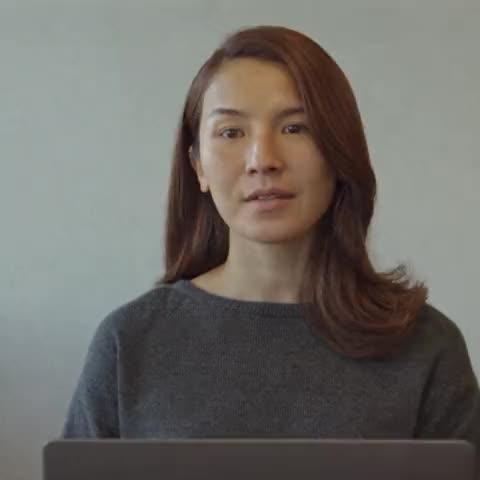 Maya
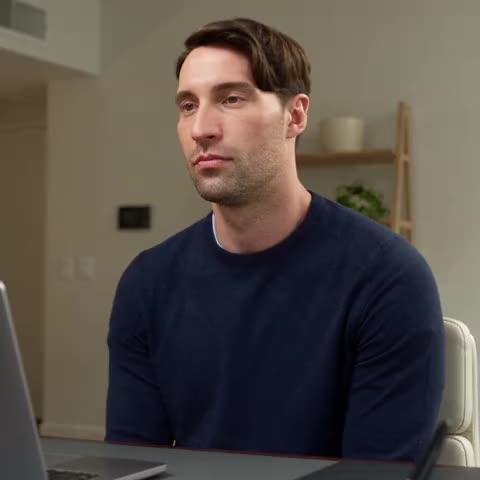 Danny
- note1 NotetakerRecording
Meeting chat
Priya
/n1 mute menote1 Notetaker
Three ways to keep someone out of the recording
Set it once for the whole workspace, change it for one meeting, or let people ask during the call.
For every meeting
A workspace admin adds people to the Do not record list for the workspace. The list holds up to 100 people, and only admins can change it.
Team → General → Recording & recap → Do not record
Do not record
People on this list are not recorded and their camera is hidden. In the transcript they show as [redacted].
For one meeting
In the meeting's settings, the Do not record row has two options. Workspace list uses the admin's list. Custom lets you pick the people for that meeting.
Locked once the meeting starts.
Do not record
People the notetaker will not record in this meeting.
Workspace list (2 people)
Custom
During the call
Anyone in the call can type one of these commands in the meeting chat. Each one lasts for that meeting.
/n1 mute me- Stops recording you.
/n1 mute <name>- Stops recording someone else in the call. Type the name as it shows in the meeting.
/n1 unmute me- Records you again.
Meeting chat
Priya
/n1 mute menote1 Notetaker
What the recording looks like
The rest of the meeting is recorded as usual. While a person is not being recorded, the parts where they speak are left out.
- Maya
- Danny
- note1 Notetaker
Transcript
 Maya00:38
Let’s go through the launch checklist. Who has the QA update?
[redacted]
 Danny01:24
I can take the release notes and share a draft tomorrow.
Maya01:41Thanks. Let’s lock the date on Thursday.
MayaDanny- Audio
- Their audio is left out. The other speakers are kept.
- Video
- Their camera tile is covered.
- Transcript
- The speaker shows as Redacted and the line reads [redacted].
- Summary and action items
- They are written without those parts.
- Search and Ask note1
- What was said in those parts does not come up in search or in Ask note1 answers.
Pause the recording for everyone
When the conversation turns to something that should stay out of the notes, anyone in the call can pause the recording with a command in the meeting chat.
In the transcript, the paused stretch shows the speaker Paused with [recording paused].
A pause does not end on its own. The recording stays paused until someone types the resume command in the meeting chat.
Meeting chat
Maya
/n1 pausenote1 Notetaker
Transcript
[recording paused]
/n1 pause- Pauses the recording for everyone. The Notetaker stays in the call and answers "Recording paused." with a reminder of how to resume.
/n1 resume- Continues the recording. The Notetaker answers "Recording resumed."
/n1 leave- Sends the Notetaker out of the call. It stops recording and leaves.
What the Notetaker says when it joins
When the Notetaker joins, it posts a message in the meeting chat. The message says who invited note1 and links to the privacy policy.
Who is not being recorded
If people who are not being recorded are in the call, the message names them.
The chat commands
The message lists the commands, so everyone in the call can see how to use them.
Meeting chat
note1 Notetaker
Maya invited note1.ai here to record & take notes. By continuing, you agree to
https://note1.ai/docs/privacy-policy
Not recording: Priya
Type:
'/n1 leave' - stop recording
'/n1 mute me' - don't record me
'/n1 mute <name>' - don't record that person
'/n1 unmute me' - record me again
'/n1 pause' - pause recording
'/n1 resume' - resume recording
What to expect
Do not record has a few limits. Read them before you rely on it.
It currently works on Google Meet calls the Notetaker joins. On Zoom and Microsoft Teams, and in recordings from the desktop app or uploads, everyone is recorded.
People are matched by the name they use in the meeting. Someone who joins under a name that matches no contact, or by phone, is recorded.
A person on the list can still appear when they share their screen.
Anyone in the call can use the chat commands. That includes recording a person again, even someone on the workspace list, for that meeting.
Try it on your next meeting.
Start a trial, add the people who should be left out, and invite the Notetaker to a Google Meet call.
Frequently Asked Questions
SupportHow do I keep someone out of a meeting recording?
A workspace admin can add the person to the Do not record list under Team → General → Recording & recap. For a single meeting, set the Do not record row in the meeting's settings to Custom and pick the people. During a call, the person can type /n1 mute me in the meeting chat.
Can a participant opt out during the call?
Yes. They type /n1 mute me in the meeting chat and the Notetaker stops recording them for that meeting. Anyone in the call can do the same for another person by name.
What does the transcript show for someone who is not recorded?
Where they spoke, the transcript shows the speaker Redacted and the text [redacted]. That part was not recorded.
Does the summary include what they said?
The summary and action items are written without the parts that were not recorded. What was said in those parts does not come up in search or in Ask note1 answers either.
Can I pause the recording for everyone?
Yes. Anyone in the call can type /n1 pause in the meeting chat, and /n1 resume to continue. The transcript shows Paused with [recording paused] for that stretch. The recording stays paused until someone resumes it.
Who can change the do-not-record list?
Only workspace admins can change the workspace list. For a single meeting, the Do not record row in the meeting's settings can use a custom list until the meeting starts. During the call, anyone can use the commands in the meeting chat, and those last for that meeting.
Does it work on Zoom and Microsoft Teams?
It currently works on Google Meet calls the Notetaker joins. On Zoom and Microsoft Teams, and in recordings from the desktop app or uploads, everyone is recorded.
More AI meeting tools from note1
More about recording and privacy in note1.
Private AI note taker
See the privacy controls in note1 on one page.
Google Meet AI note taker
How the Notetaker joins a Meet call, records it and writes the notes.
Google Meet transcription
Get a searchable transcript and recap for each Google Meet call.
Bot-free AI note taker
Record from your Mac with nothing joining the call.