
Teams meeting transcripts: how to turn on, find, and download them

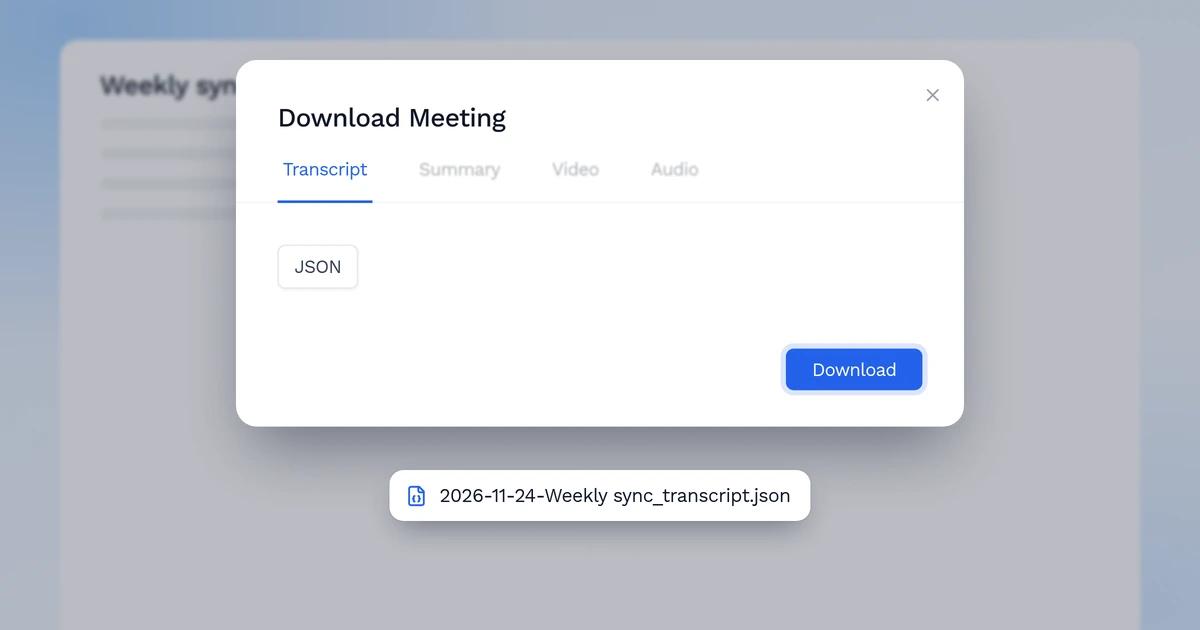
Two things often get in the way of a Teams meeting transcript: an admin policy that blocks transcription, and download permissions that by default only cover the organizer and co-organizers. This guide covers both.
These steps reflect Microsoft's documentation checked in November 2026. Labels can differ slightly between the new Teams desktop app, Teams on the web, and mobile.
Short answer
To get a Teams meeting transcript, start transcription during the meeting with More actions > Transcribe, or start a recording, which turns on transcription automatically. After the meeting, open the meeting chat, select Recap > Transcript, and use Download to save it as a .docx or .vtt file.
If Transcribe is missing, a meeting policy or the organizer's meeting options usually block it. If Download is missing, you're probably not the organizer or a co-organizer. If you want the transcript together with a summary, speaker names, and action items, or your account can't transcribe, note1.ai can capture the Teams meeting separately.
How to turn on transcription in a Teams meeting
Microsoft's article on live transcripts in Teams meetings describes two ways to start.
Start transcription without recording
- In the meeting controls, select More actions.
- Select Transcribe.
- Confirm the language everyone is speaking.
- Select Confirm.
The transcript appears in a side panel with each speaker's name and a time stamp. Everyone in the meeting sees a notification that transcription has started. Participants can choose to hide their identity in captions and transcripts.
Start transcription by recording
When you record a Teams meeting, transcription starts automatically. Stopping the recording also stops the transcript. To stop only the transcript and keep recording, select More actions > Transcribing.
Pick the right spoken language
The spoken language setting controls transcript accuracy and changes the language for everyone. If Teams detects that people are speaking a different language, it prompts the organizer, a co-organizer, or the person who started transcription to change it. To change it yourself, open the transcript pane, select Language settings, choose the spoken language, and select Update.
Who can start, view, and download a Teams transcript
Microsoft's support article lists these defaults:
| Participant | Start and stop | View during meeting | View after meeting | Download after meeting |
|---|---|---|---|---|
| Organizer | Yes | Yes | Yes | Yes |
| Person in the same organization | Yes | Yes | Yes | No, unless the organizer allows it |
| Person from another tenant | No | Yes | No | No |
| Anonymous participant | No | No | No | No |
People who dial in by phone can't view the transcript. Co-organizers can download by default, and the organizer may be able to give others download permission, depending on your admin's policies.
With Teams Premium or Microsoft 365 Copilot, organizers also get a meeting option for who can record and transcribe: organizers and co-organizers, organizers plus presenters, or no one.
Where to find a Teams meeting transcript
When the meeting ends, the transcript is available right away:
- Select Chat in Teams.
- Open the chat for the past meeting.
- Select Recap, then Transcript.
You can also open the meeting from your Teams Calendar and go to its recap. For recurring meetings, the recap lets you pick an occurrence.
Behind the scenes, Microsoft stores transcripts with the meeting recording in OneDrive and SharePoint. For most non-channel meetings, that is the organizer's OneDrive. Channel meeting recordings are stored in the channel team's SharePoint site. The transcript stays available through the meeting chat and Recap until the organizer deletes it.
How to download a Teams transcript
- Open the meeting chat and select Recap > Transcript.
- Select the arrow next to Download.
- Choose
.docxfor a Word document or.vttfor a caption file with time codes.
Use .docx to read, edit, or share the text. Use .vtt when you need timings, for example to add captions to a video.
If Download isn't there, you're probably not the organizer or a co-organizer. Ask the organizer to download it and share it, or to change who can download.
To share the transcript with people who joined from a phone, Microsoft suggests downloading it and attaching it to the meeting chat. Organizers and co-organizers can also edit or delete the transcript from Recap.
Admin settings that control Teams transcription
If the Transcribe button is missing or unavailable, the cause is usually policy. Microsoft's admin guide, Manage transcription and captions for Teams meetings, says transcription is both a per-organizer and per-user setting:
- The meeting organizer must have transcription allowed. If not, nobody in that meeting can transcribe.
- The person who starts the recording or transcript must also have it allowed.
An admin checks this in the Teams admin center under Meetings > Meeting policies > Transcription. It is on by default for new policies. In PowerShell, the setting is -AllowTranscription in Set-CsTeamsMeetingPolicy.
Microsoft's troubleshooting page, I can't transcribe a meeting in Microsoft Teams, lists two more causes: the meeting was created through the Microsoft Graph API with transcription turned off, or the organizer set Allow Copilot to Off in the meeting options. In both cases, the organizer has to change the setting and start a new meeting.
Limits of Teams' built-in transcripts
- Live captions are not saved. Microsoft's admin guide says Teams doesn't save captions. Captions alone won't give you a transcript after the call, which is also why caption-based extensions compared in Tactiq alternatives depend on captions being on.
- Downloads are limited by default. Only the organizer and co-organizers can download unless permissions are changed.
- External guests lose access after the meeting. People from another tenant can read the live transcript but can't open it afterward.
- One spoken language at a time. Changing it changes the transcript for everyone.
- Translated transcripts aren't kept. Live translated transcription is part of Teams Premium, and only the original transcript is stored.
- Minutes still need writing. You still have to pull out decisions and owners (see how to write meeting minutes). Recap's AI summary and intelligent recap need a Teams Premium or Microsoft Copilot license.
If you mostly want notes rather than a raw transcript, see automatic meeting notes in Microsoft Teams, which compares Teams' notes, recap, Copilot, and Facilitator. For what a Copilot license adds and where it stops, see Copilot meeting notes vs an AI note taker; third-party options are compared in the AI note takers for Teams roundup.
Get a Teams transcript with note1.ai
note1.ai keeps its own transcript of the meeting, separate from Teams Recap. It doesn't need the Teams transcription policy to be on, and it adds the summary and action items. You still need to tell participants and follow your organization's rules on recording.
Send the note1 Notetaker to the Teams meeting
- Connect your Microsoft or Google calendar so note1.ai sees meetings with a Teams link, or press New meeting > Add live meeting and paste the teams.microsoft.com or teams.live.com join link.
- The Notetaker joins as a visible participant. If the meeting has a lobby, someone admits it.
- After the call, open the meeting under Meetings to read the transcript, summary, and action items.
Record on your Mac without a bot
The note1.ai desktop app for macOS 15+ on Apple Silicon records your microphone and your Mac's system audio, so nothing joins the Teams call. It can offer to record when it detects a Teams meeting. You see a live transcript while recording. When you stop, the recording is uploaded for the final transcript and notes, which are processed on note1.ai's servers. Because nothing joins the call, Teams shows no recording notice, so tell people yourself. See the bot-free AI note taker.
Upload a Teams recording
Download the recording from OneDrive or SharePoint, then press New meeting > Upload recording in note1.ai. The form lists accepted file types and the size limit. An upload gets notes after processing, without live help. See upload recordings.
What you get
- A searchable transcript with timestamps linked to playback.
- Speaker identification using names from the call, your calendar, and people you confirmed before.
- An AI meeting summary in a style such as standup, 1:1, team meeting, or sales call.
- Action items with owners, which you can send to Linear, Jira, GitHub, Asana, Trello, Todoist, Motion, or Notion.
- One searchable record across Teams, Zoom, and Google Meet.
Plans and limits are on the pricing page.
Troubleshooting a missing Teams transcript
| Problem | Check next |
|---|---|
| Transcribe is missing for everyone | The organizer's meeting policy blocks transcription, or Allow Copilot is off in meeting options. |
| Transcribe is missing only for you | Your own policy blocks it, or the organizer limited who can record and transcribe. |
| No Transcript tab in Recap | Nobody started transcription or recording in that meeting. |
| You can see the transcript but can't download it | Only organizers and co-organizers can download by default. |
| A guest can't open the transcript | People from another tenant can't view it after the meeting. Share a downloaded copy. |
| The transcript is in the wrong language | The spoken language was set incorrectly. Set it correctly at the start next time. |
Frequently asked questions
How do I get a transcript from a Teams meeting after it ended?
Open the meeting chat, select Recap > Transcript. If there is no transcript, nobody started transcription or recording during the meeting, and Teams can't create one afterward. If you have a recording file, you can upload it to a transcription tool.
Can I download a Teams transcript as a participant?
Not by default. Organizers and co-organizers can download it as .docx or .vtt. Ask the organizer to share it or to change download permissions.
Where are Teams transcripts stored?
With the meeting recording in OneDrive and SharePoint, usually the organizer's OneDrive for non-channel meetings. You open them through the meeting chat and Recap.
Do I need Teams Premium for transcription?
No. Microsoft documents transcription as a meeting policy setting for work and school accounts, so the organizer's and your own policy must allow it. Teams Premium or Copilot adds extras such as translated transcription, intelligent recap, and more control over who can transcribe.
How do Zoom and Google Meet transcripts compare?
Each platform has different requirements and storage. See how to get a Zoom transcript and how to get a Google Meet transcript.